Interactive Quiz Options
Preamble
The content of this page has been taken from the information popups found on the https://hwb.gov.wales Playlist editor, to provide authors without access to a Hwb account the ability to see how Hwb expects "Quiz" content to be authored. Peniarth has no ability to change the function of any of the activity types below, the guidelines for which must be followed without exception.
Activity Types
Sort- Sort
- Multiple Choice Image
- Multiple Choice Text
- Reordering
- Either/Or
- Cloze - Text Entry
- Cloze - Select Answer
"Quiz"
A quiz is made up of one or more activities, such as Sort, Multiple Choice Image and Multiple Choice Text.
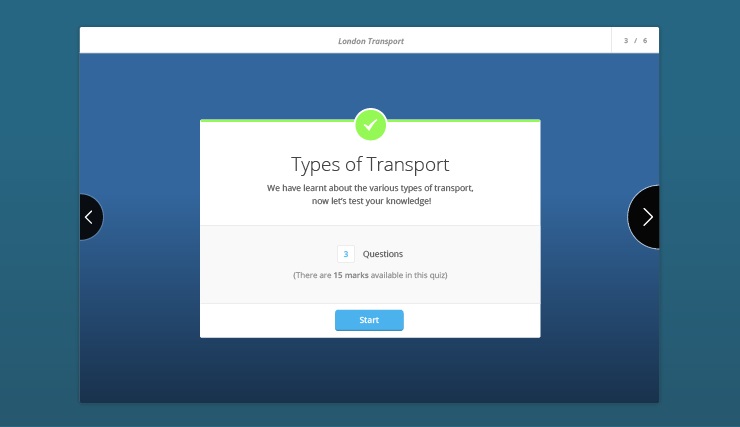
Quizzes have a front cover containing some automatically generated information including the number of questions in the quiz and the total number of marks for the quiz. You can also add a title and description to the front cover.
The quiz front cover looks like this:
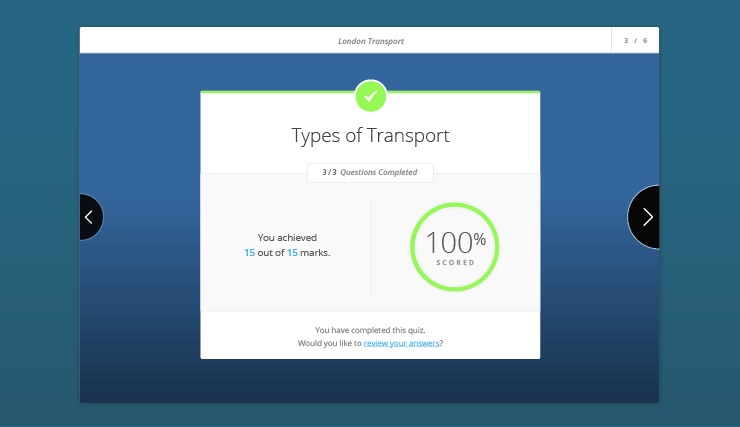
There is a summary at the end of the quiz indicating how many marks the user achieved and an overall percentage score for the quiz.
The quiz summary looks like this:
How do I create a quiz?
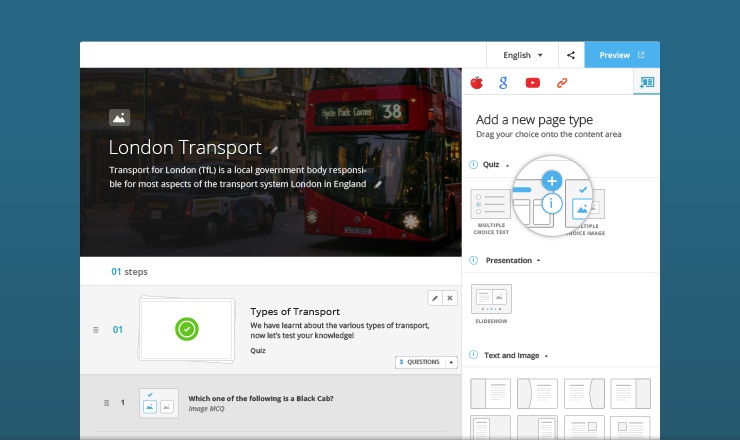
Start by adding an activity to your Playlist. Do this by clicking on the  button that appears when you hover over an activity in the Playlist Editor.
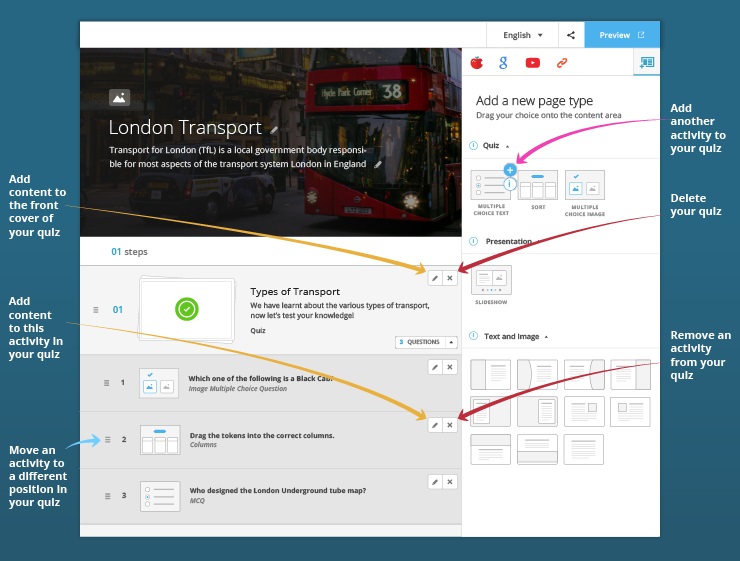
When you do this, the quiz will appear in the Playlist Storyboard and will include the selected activity.
How do I add more than one activity to a quiz?
There are three ways to do this.
Choose an activity in the Playlist Editor. Each time you do this, you will be asked if you want the activity to be part of an existing quiz or a new one. Choose to add it to an existing quiz (existing quizzes are listed in a dropdown menu) and the activity will appear in the selected quiz in the Playlist Editor.
Alternatively, drag an activity from the Playlist Editor and drop it below the quiz in the Playlist Storyboard.
You can also use the button that is situated in the top right-hand corner of the forms used to author and edit a quiz.
How do I create subsequent quizzes?
Choose an activity in the Playlist Editor. Each time you do this, you will be asked if you want the activity to be part of an existing quiz or a new one. Choose to create a new quiz and the activity will appear will appear in the Playlist Editor, with a new cover and summary page.
Sort
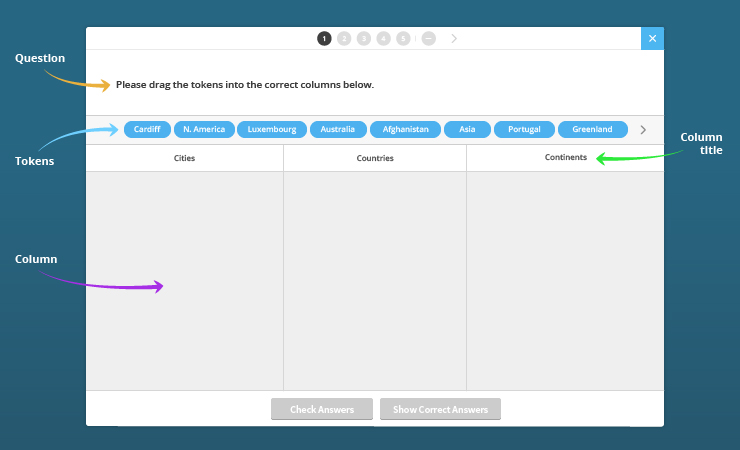
In this activity, users sort items into columns. You decide on the column titles, and on the items you want users to place into those columns. Let’s start by taking a look at what this activity looks like. The example below has been designed so that users have to sort geographical locations, such as Cardiff, Asia and Portugal into the following columns: Cities, Countries or Continents.
This is how the activity looks:
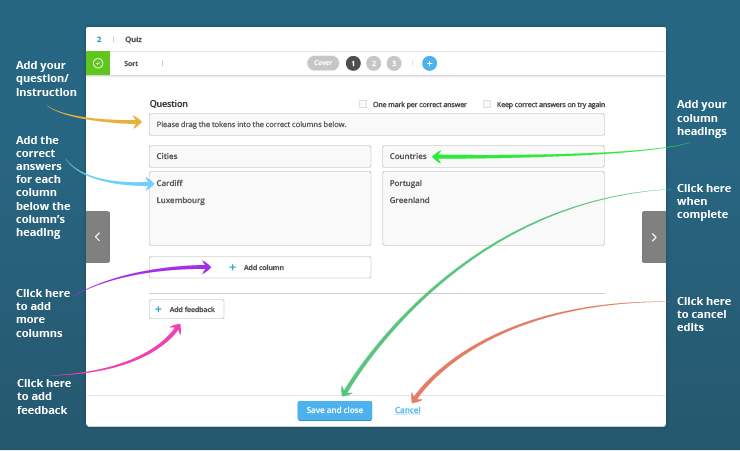
This is how the form used to author the activity looks:

How many columns can I have?
As many as you want, although the activity is most effective with two or three columns.
How many answers can I author?
We use the term ‘tokens’ to refer to the items (words) that users will drag into the columns. You can create as many tokens as you want, although the activity is most effective with up to a handful of tokens for each column.
How do users know if they have answered correctly?
After completing the activity, users can click on a button labelled ‘Check Answers’. A green tick will appear next to tokens they have placed into the correct column and a red cross will appear next to those they have placed in the wrong column. By default, incorrectly placed tokens are reset if the user clicks on the button ‘Try again’. In the form, uncheck the box labelled ‘Keep correct answers on try again’ if you would prefer all tokens to be reset.
Can I write feedback for the activity?
Yes, you can. Feedback for this activity is shown when users click on ‘Check Answers’. There is an ‘Add feedback’ button towards the bottom of the form which you may have to scroll to see.
Can I decide how many marks this activity is worth?
You have two options.
You can give the activity one mark in total. This means that users have to place all tokens correctly to achieve the mark.
Alternatively, you can give users a mark for every token they place correctly. The amount of marks the activity is worth depends on the total number of tokens.
How do I create a Sort activity?
Add a Sort activity to the Playlist Storyboard, then click on  and author the activity as shown below:
Things to be aware of:
- The tokens you author will appear above the columns in the activity. All tokens will be jumbled.
- When authoring tokens, separate them by pressing ‘Return’.
Multiple Choice Image
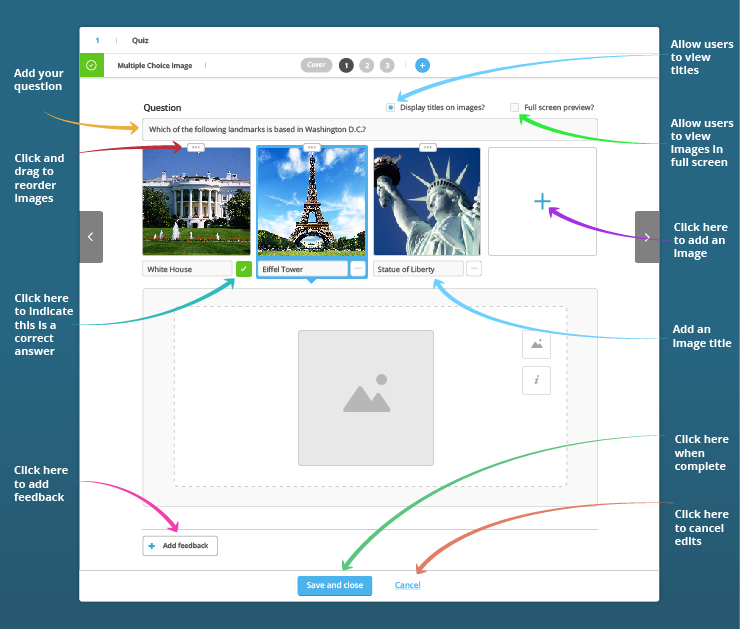
This activity involves posing a question and asking users to choose the correct answer(s) from several you provide. Answers take the form of images you upload.
This is how the activity looks:

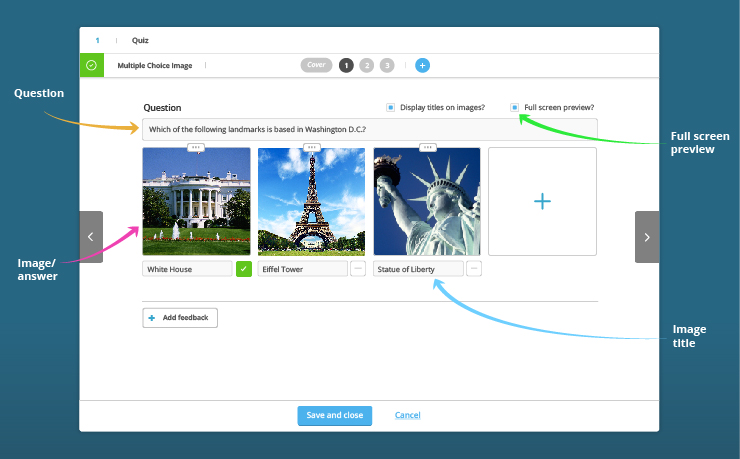
This is how the form used to author this activity looks:
How many questions can I ask?
You can ask one question in this activity.
How many answers (images) can I add?
You can add as many images as you want, although the activity is most effective with three or four.
Can I author more than one correct answer?
You can choose to have any number of correct answers.
How do users know if they have answered correctly?
After selecting an image (or images) to answer the question, users can click on a button labelled ‘Check Answers’. A green outline around the selected image and a green tick indicates that they have answered correctly. A red outline and cross indicates that their selection is incorrect.
Can I write feedback for the activity?
Yes, you can. Feedback for this activity is shown when users click on ‘Check Answers’. There is an ‘Add feedback’ button towards the bottom of the form which you may have to scroll to see.
How do I create a Multiple Choice Image activity?
Add a Multiple Choice Image activity to the Playlist Storyboard, then click on and author the activity as shown below:
Multiple Choice Text
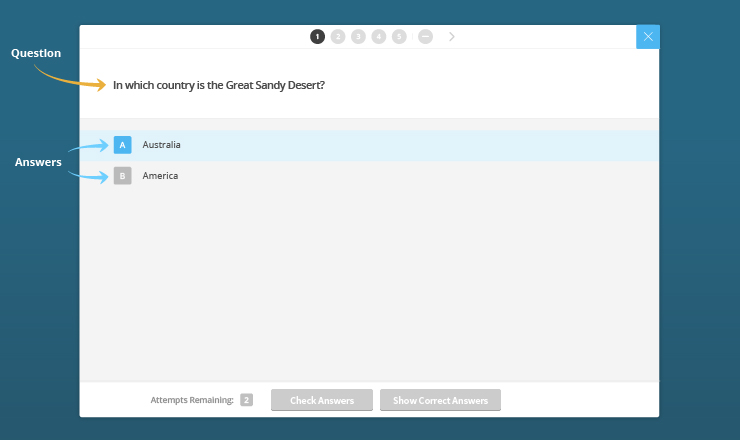
This activity involves posing a question and asking users to choose the correct answer(s) from several you provide.
This is how the activity looks:
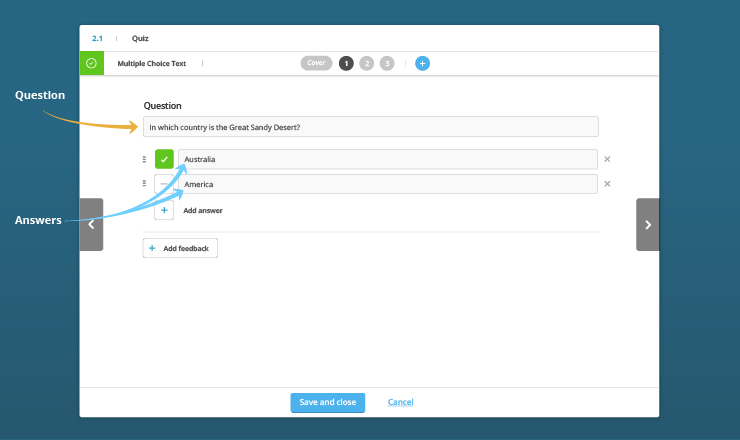
This is how the form used to author this activity looks:
How many questions can I ask?
You can ask one question.
How many answers can I add?
You can add as many answers as you want.
Can I author more than one correct answer?
You can choose to have any number of correct answers.
How do users know if they have answered correctly?
After selecting an answer (or answers) to the question, users can click on a button labelled ‘Check Answers’. A green outline around the selected answer and a green tick indicates that they have answered correctly. A red outline and cross indicates that their selection is incorrect.
Can I write feedback for the activity?
Yes, you can. Feedback for this activity is shown when users click on ‘Check Answers’. There is an ‘Add feedback’ button towards the bottom of the form which you may have to scroll to see.
How do I create a Multiple Choice Text activity?
Add a Multiple Choice Text activity to the Playlist Storyboard, then click on and author the activity as shown below:

Reordering
In this activity, users have to reorder items vertically or horizontally. You can author numbers, letters, words or sentences.
Let’s start by taking a look at what this activity looks like.
This is how the activity looks:
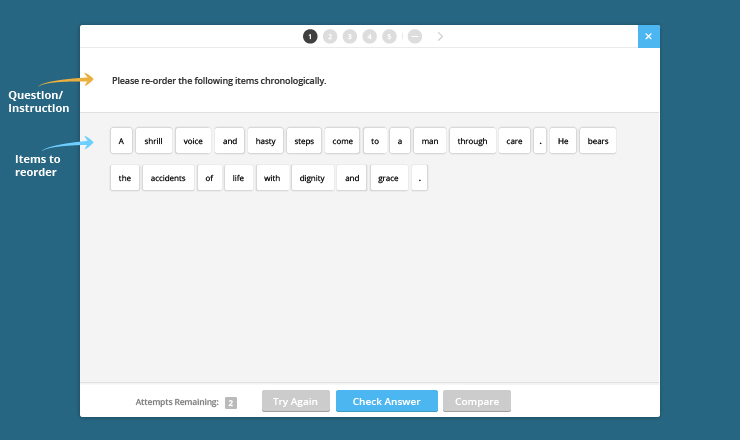
Note: Selecting the ‘Flow’ layout when authoring this activity means that items you author will appear as shown above. You can choose to keep all of the items on one line by choosing ‘Horizontal’ instead of ‘Flow’.
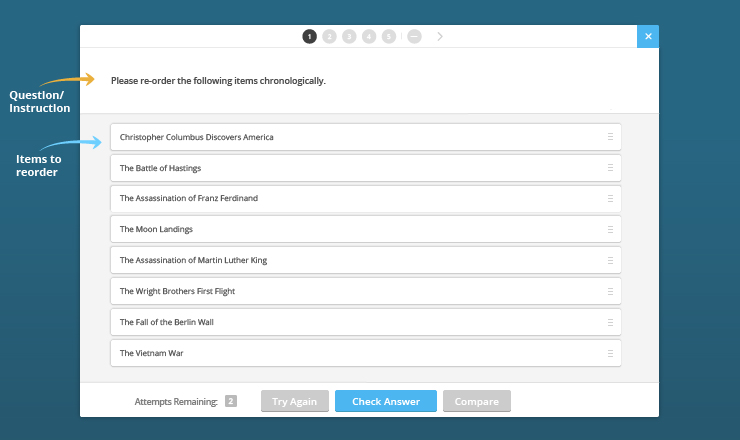
In this example users have to reorder sentences vertically:
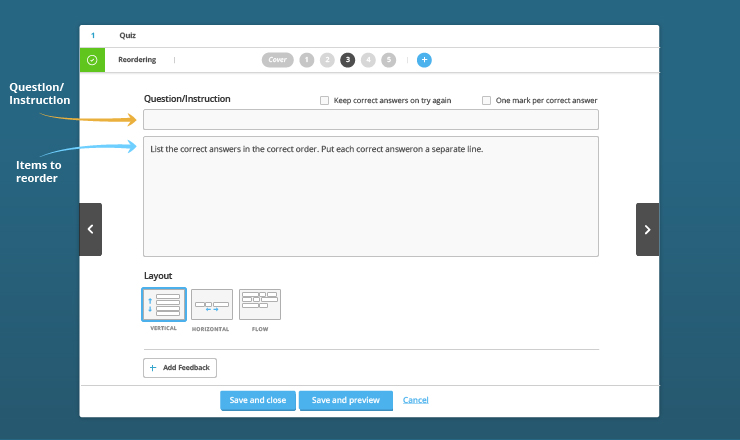
This is how the form used to author the activity looks:
How many items can I add?
You can add as many items as you want. Always preview the activity to ensure it works well with your content.
How do users know if they have answered correctly?
After completing the activity, users can click on a button labelled ‘Check Answers’. A green tick will appear next to items they have placed correctly and a red cross will appear next to those they have placed incorrectly.
By default, all items are reset if the user clicks on the ‘Try again’ button. When users reach the maximum number of attempts, they can compare the correct answers with their own if they have still not answered correctly. However, you can choose to ‘Keep correct answers on try again’ when authoring the activity.
Can I write feedback for the activity?
Yes, you can. There is an ‘Add feedback’ button towards the bottom of the form which you may have to scroll to see. Feedback for this activity is shown when users click on ‘Check Answers’ after their last attempt.
Can I decide how many marks this activity is worth?
You have two options.
You can give the activity one mark in total. This means that users have to place all items in the correct positions to achieve the mark.
Alternatively, you can give users a mark for each item they place correctly. The amount of marks the activity is worth depends on the total number of items to be ordered.
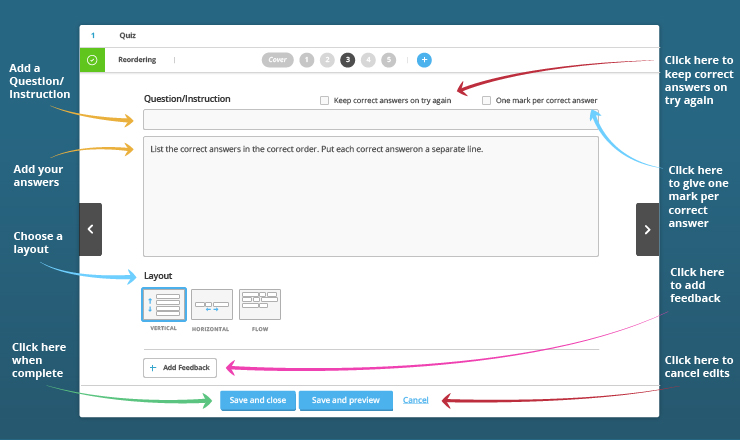
How do I create a Reordering activity?
Add a Reordering activity to the Playlist Storyboard, then click on and author the activity as shown below:
Either/Or
In this activity, users respond to statements by choosing one of two possible options.
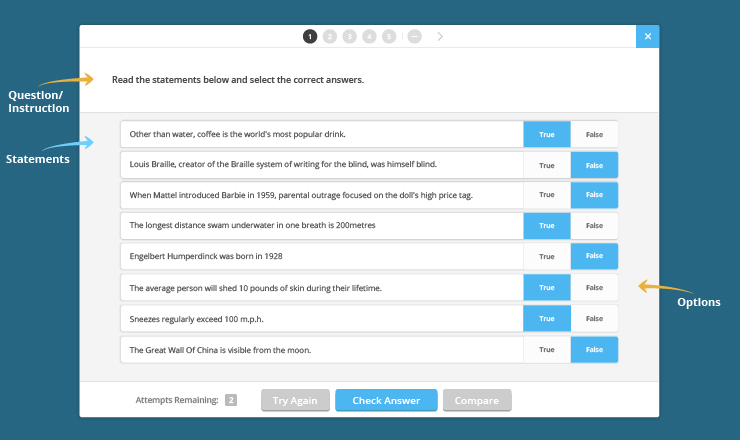
Let’s start by taking a look at what this activity looks like. In the example below users have to decide if statements are true or false.
This is how the activity looks:
This is how the form used to author the activity looks:
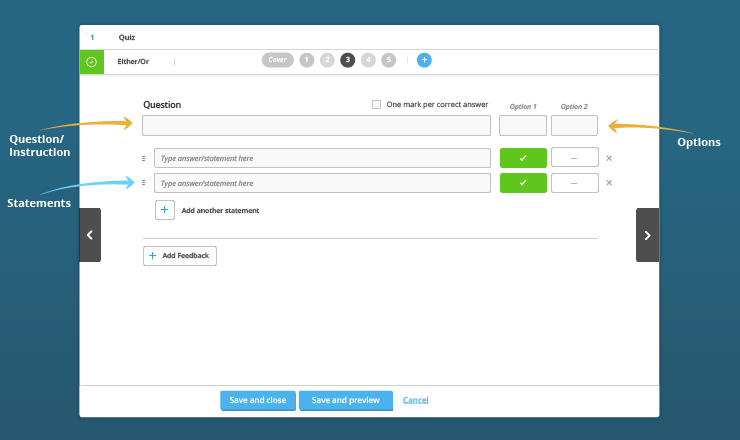
How many statements can I add?
As many as you want although the activity is most effective with between four and eight statements.
How many options can I author?
You can author two options, e.g. True/False, Yes/No. The two possible options will be the same for all of the statements.
How do users know if they have answered correctly?
After completing the activity, users can click on a button labelled ‘Check Answers’ to find out how many statements they responded to correctly. If they responded incorrectly to some or all of the statements and they have more than one attempt, they can click to ‘Try Again’. Users’ selected answers remain in place so that they can choose to change some or all of their responses. When they reach the maximum number of attempts, they can compare the correct answers with their own if they have still not answered correctly.
Can I write feedback for the activity?
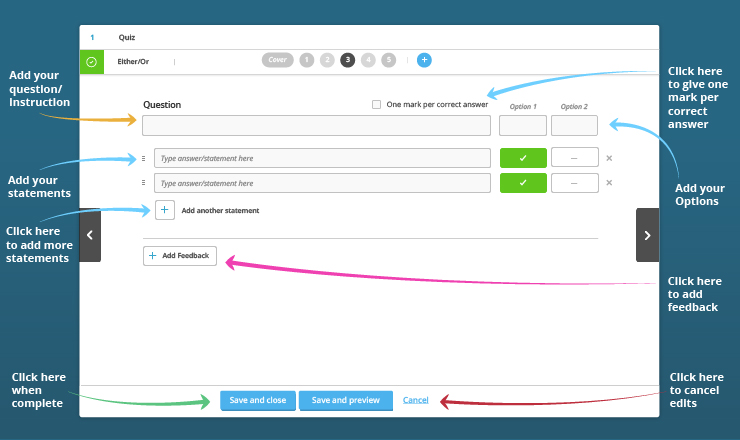
Yes, you can. There is an ‘Add feedback’ button towards the bottom of the form which you may have to scroll to see. Feedback for this activity is shown when users click on ‘Check Answers’ after their last attempt.
Can I decide how many marks this activity is worth?
You have two options.
You can give the activity one mark in total. This means that users have to respond to all of the statements correctly to achieve the mark.
Alternatively, you can give users a mark for each statement they respond to correctly. The amount of marks the activity is worth depends on the total number of statements.
How do I create an Either/Or activity?
Add an Either/Or activity to the Playlist Storyboard, then click on and author the activity as shown below:
Cloze - Text Entry
In this activity, words are omitted from a sentence or passage of text and users are required to fill in the blanks by typing in an answer. The activity can also be used for number work.
This is how the activity looks:
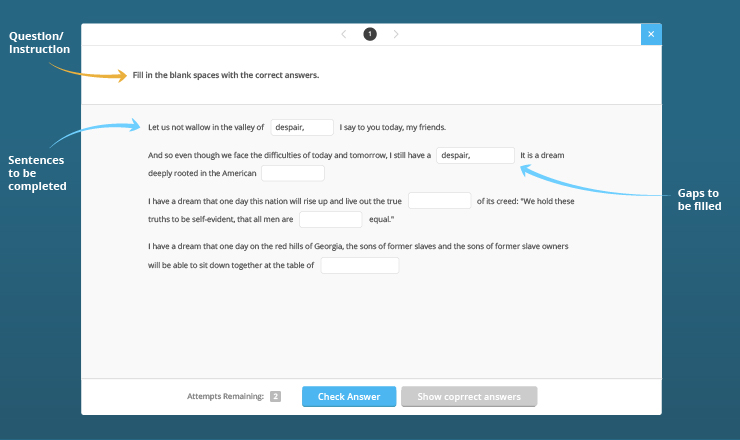
This is how the form used to author the activity looks:
How much content can I author and how many gaps can I add?
There is no limit on the amount of content you can author or the gaps you can add.
How do users know if they have answered correctly?
After filling in the gaps, users can click on a button labelled ‘Check Answers’. A green tick indicates a correct answer and a red cross indicates an incorrect answer.
If you choose to give your users multiple attempts, they can click to ‘Try again’ if they answer incorrectly. Users can compare their answer(s) to the correct answer(s) at the end of the activity if they aren’t successful.
Can I write feedback for the activity?
There is an ‘Add feedback’ button towards the bottom of the form which you may have to scroll to see. Feedback for this activity is shown when users click on ‘Check Answers’ after their last attempt.
Can I decide how many marks this activity is worth?
You have two options.
You can give the activity one mark in total. This means that users have to fill in all of the gaps correctly to achieve the mark.
Alternatively, you can give users a mark for each gap they fill correctly. The amount of marks the activity is worth depends on the total number of gaps.
How do I create a Cloze - Text Entry activity?
Add a Cloze - Text Entry activity to the Playlist Storyboard, then click on and author the activity as shown below:
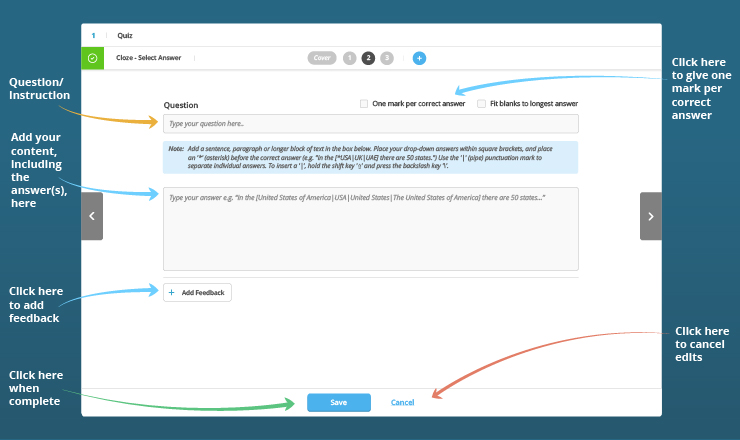
Cloze - Select Answer
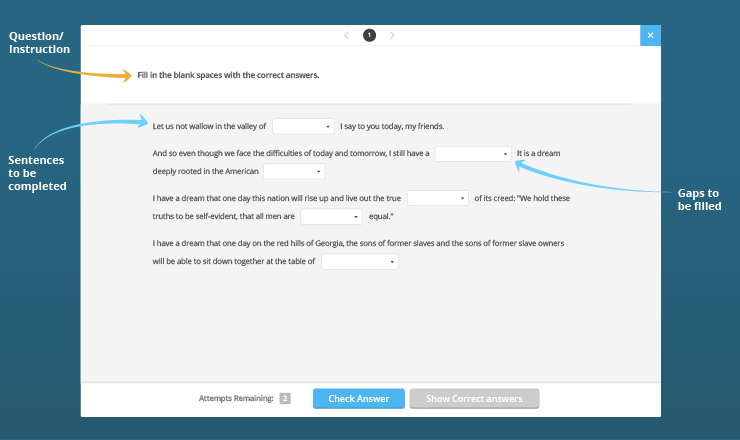
In this activity, words are omitted from a sentence or passage of text and users are required to fill in the blanks by selecting an answer from a dropdown menu. The activity can also be used for number work.
This is how the activity looks:
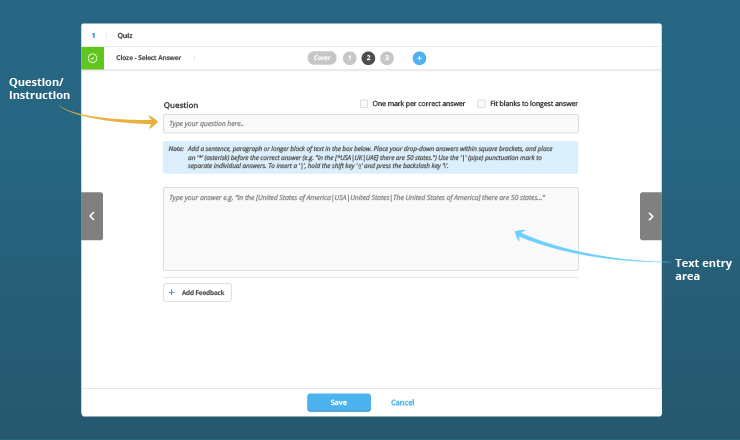
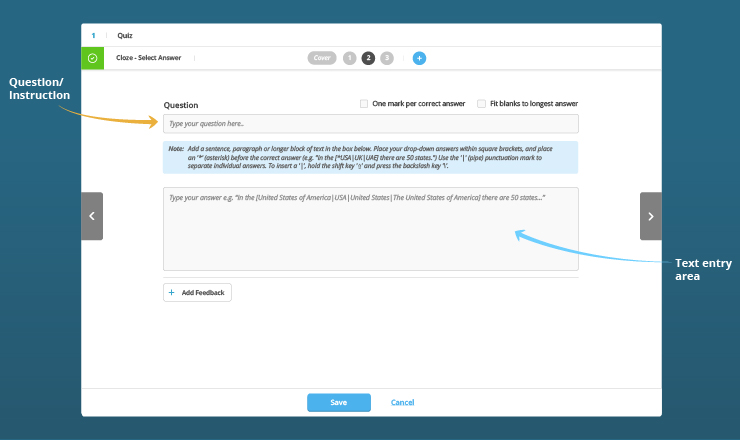
This is how the form used to author the activity looks:
How much content can I author and how many gaps can I add?
There is no limit on the amount of content you can author or the gaps you can add.
How do users know if they have answered correctly?
After filling in the gaps, users can click on a button labelled ‘Check Answers’. A tick indicates a correct answer and a cross indicates an incorrect answer.
If you choose to give your users multiple attempts, they can click to ‘Try again’ if they answer incorrectly. Users can compare their answer(s) to the correct answer(s) at the end of the activity if they aren’t successful.
Can I write feedback for the activity?
There is an ‘Add feedback’ button towards the bottom of the form which you may have to scroll to see. Feedback for this activity is shown when users click on ‘Check Answers’ after their last attempt.
Can I decide how many marks this activity is worth?
You have two options.
You can give the activity one mark in total. This means that users have to fill in all of the gaps correctly to achieve the mark.
Alternatively, you can give users a mark for each gap they fill correctly. The amount of marks the activity is worth depends on the total number of gaps.
How do I create a Cloze - Select Answer activity?
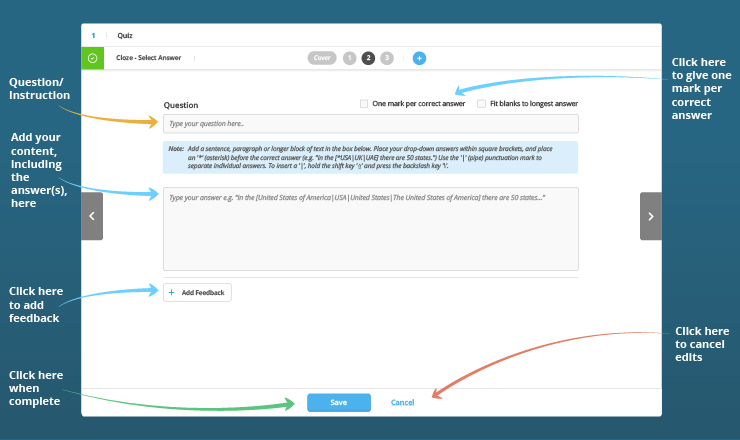
Add a Cloze - Select Answer activity to the Playlist Storyboard, then click on and author the activity as shown below: